> ## Documentation Index
> Fetch the complete documentation index at: https://docs.nativecli.com/llms.txt
> Use this file to discover all available pages before exploring further.
# Start a New NativePHP Project
> Create your first NativePHP project using NativeCLI
This tutorial assumes that you have already followed the [Installation](/getting-started/installation) guide.
## Before you start
Make sure that:
* NativeCLI has been [installed](/getting-started/installation)
* NativeCLI is in your path and available for use:
```bash theme={null}
nativecli --version
# Output: NativePHP CLI Tool x.x.x
```
Version number may vary depending on your installed version
## Starting a new NativePHP Project
At this time, NativePHP only supports Laravel. For this reason, so does NativeCLI.
NativeCLI utilises Laravel's Installer library. This means that any arguments available within that is also available within NativeCLI.
This tutorial assumes that you will be creating your project in a `~/Code` directory in your user home.
1. Execute the following command in the terminal:
```bash theme={null}
cd ~/Code
nativecli new MyFirstProject
```
 2. You'll be prompted to select some options from the Laravel installer. Choose your favorites!
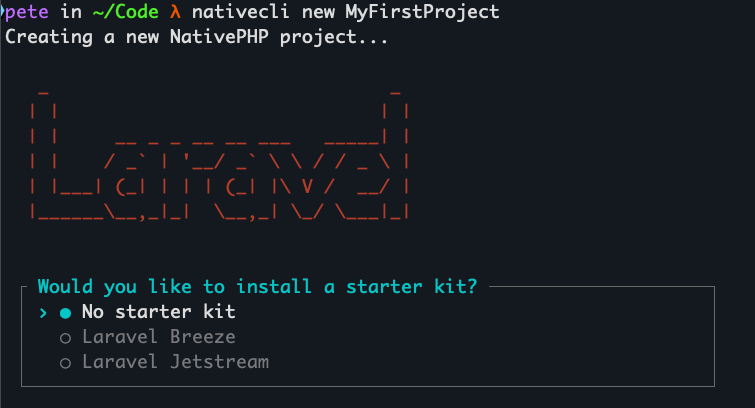 3. NativeCLI will install NativePHP and then ask whether you want to start the app with `native:run`.
4. Prefer NativePHP Jump instead? Create the project with `--jump` to run `native:jump` and skip install/run:
```bash theme={null}
nativecli new MyFirstProject --jump
```
## Next Steps
Learn about NativeCLI configuration options
See all available NativeCLI commands
3. NativeCLI will install NativePHP and then ask whether you want to start the app with `native:run`.
4. Prefer NativePHP Jump instead? Create the project with `--jump` to run `native:jump` and skip install/run:
```bash theme={null}
nativecli new MyFirstProject --jump
```
## Next Steps
Learn about NativeCLI configuration options
See all available NativeCLI commands